License management
The Timefold License Manager is where you register for a free trial, add and download license files, and manage your team’s access to Timefold Solver Enterprise Edition.
Register and free trial
-
Go to licenses.timefold.ai and click Register.
-
Log in with your company email address. Public email domains (Gmail, Hotmail, Yahoo, and similar) aren’t accepted. You must use a work email.
-
Fill in the registration form: company name and website URL, the scheduling problem you’re solving, the scale of your problem, and how you currently solve it.
-
Accept the terms of service and click Register.
Your account and company are created immediately, and you’re given a free, time-limited Enterprise trial: you can create and download fully functional Enterprise Edition license files right away, without talking to sales first.
The first user to register for a company automatically becomes that company’s admin.
When the trial ends, you need a paid subscription to keep creating new licenses.
Managing licenses
Creating licenses requires the admin role within your company. Regular users can view and download their own licenses only.
View your licenses
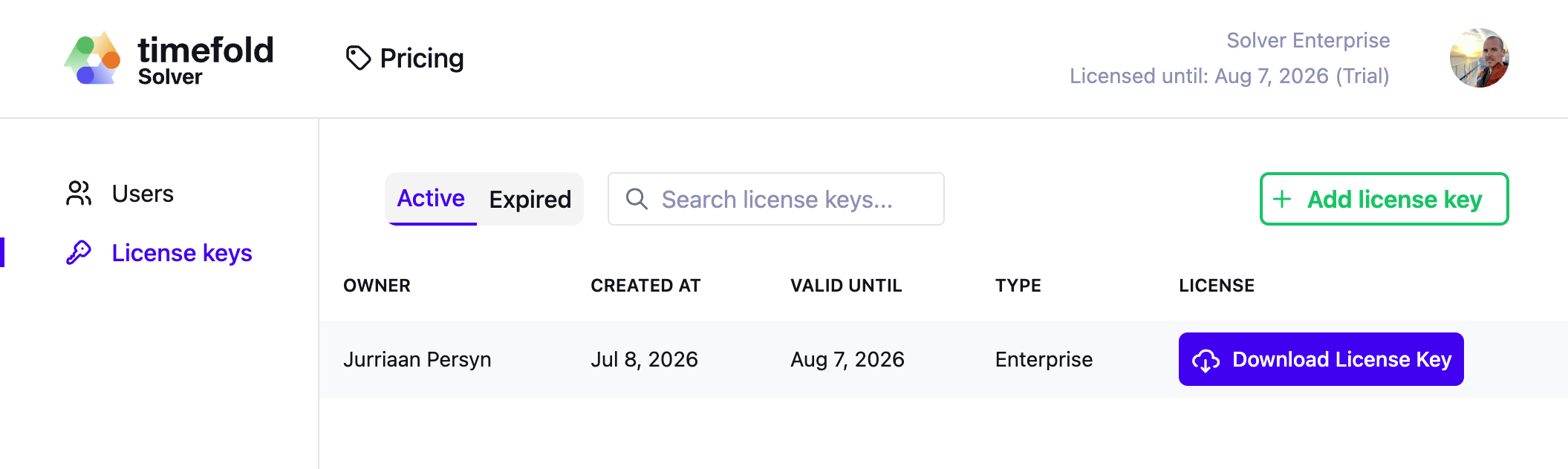
Click Licenses in the sidebar to see your active licenses, or switch to the Expired tab to see past ones. Each license card shows its type, expiration date, and a download button.
Add a license
-
Click Licenses → Add license key.
-
Select an expiration date. It can’t exceed your company’s contract end date.
-
Optionally, assign the license to a specific user in your company.
-
Click Add license key.
Your company’s plan determines the license type; you don’t need to select it manually.
Download a license key
Click Download license key next to a license to get its .pem file.
Introduce it to your project as described in Set up your license key.
|
Treat your license key as a secret. Don’t commit it to source control; inject it at runtime using your secret manager instead (for example Kubernetes Secrets, AWS Secrets Manager, HashiCorp Vault, or a CI/CD secret store). |
Expired licenses
Expired licenses remain visible under the Expired tab, and you can still download them to review, but they’re no longer accepted by the solver.
|
Once a license expires, Timefold Solver refuses to start. There is no grace period. Renew your license before it expires to avoid downtime. |
Notifications
Managing your team
Inviting and managing team members requires the admin role within your company.
Invite team members
Open your company from the sidebar, go to the Users tab, and click Invite user. The invitee receives an email with an acceptance link valid for 14 days. Once they accept, they join your company with the user role.
If an invitation expires or wasn’t received, find it in the Users tab and click Resend to send a fresh 14-day link.
Account and company settings
Update your name from your avatar menu → Settings. Your identity provider manages your email address, so you can’t change it there.
Only Timefold can change company-level settings, such as your plan and contract dates. Contact support@timefold.ai if you need your plan updated.
Pricing
Visit the pricing page for current Enterprise pricing and contact details.